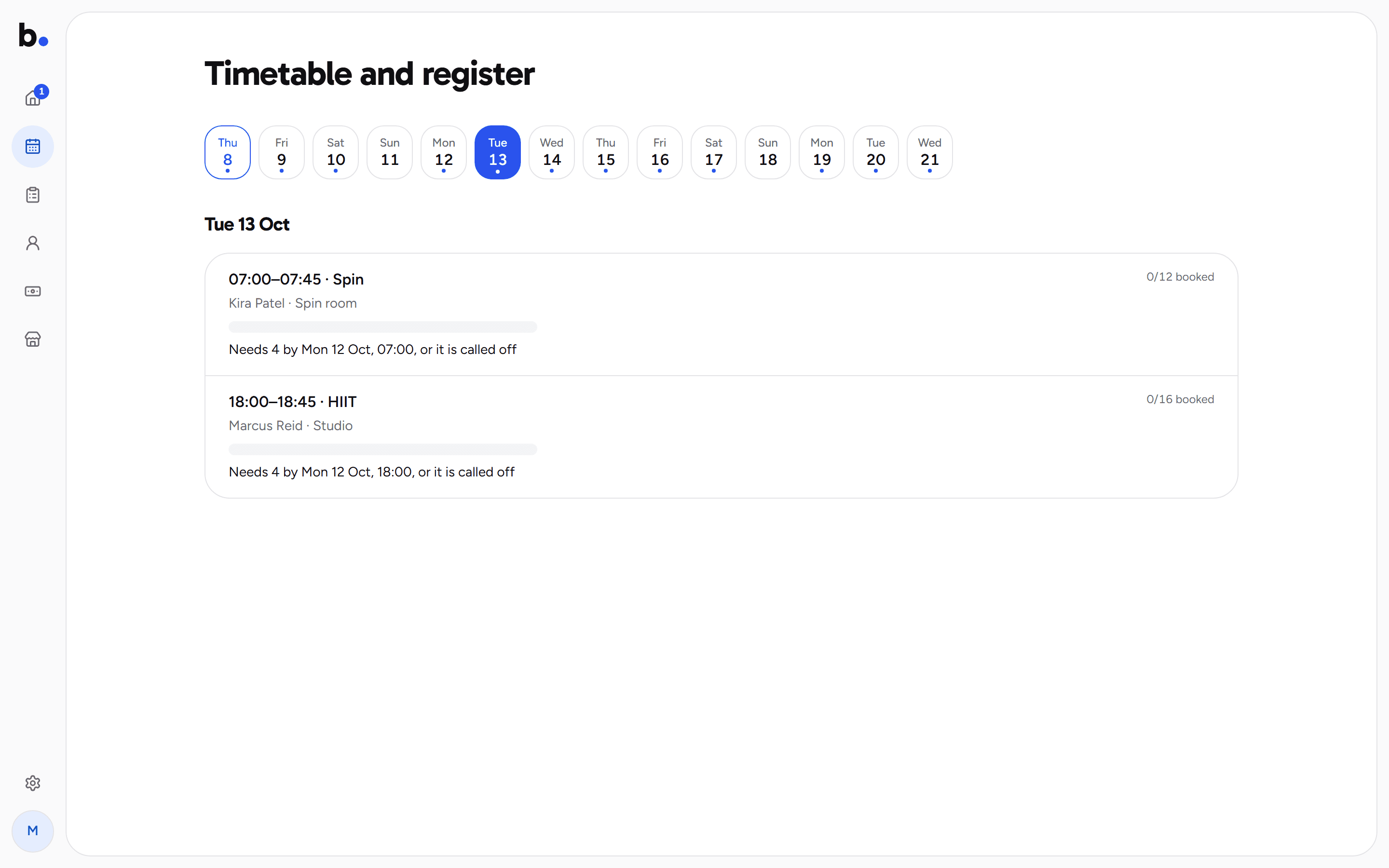
If you run classes, Schedule has a Classes view: the Timetable and register. It lists each day's sessions with the teacher, the room and how many are booked. Open a session to see who's coming, check people in and message everyone at once.
Open Classes
Choose Schedule in the menu, then Classes.
Pick a day
Use the strip of days at the top. It opens on today.
Read each session
Each row shows the time, the class, the teacher and the room, and places booked, like 0/12 booked.
Each class has a minimum, set on the timetable. Until a session reaches it, the row says how many more it needs and by when, like "Needs 4 by Mon 12 Oct, 07:00, or it is called off".
If it's still short at that time, the session is called off by itself. It shows Called off: Not enough people booked, and everyone booked is told and offered a refund or another date.
Open a session to see its Register: everyone booked, with the person attending named first and the booker under them, for a child's class.
- As people arrive, choose Check in beside their name.
- After the class, choose Mark attended.
- Marking a no-show from the register isn't available yet. Open their booking and choose Mark as no-show instead.
To tell everyone something, like a room change, choose Message everyone. Each person gets it in their own chat with you.
When every place is taken, customers can join the waitlist. If a place frees, the next person is booked into it automatically and emailed. You don't need to do anything.